Migrating from the desktop app (v2)
How to bring the worlds and folders in the desktop VRC Worlds Manager v2 into this web version. Migrating leaves the data in v2 untouched.
Back up the web version first
Migrating overwrites the worlds and folders the web version currently holds. If you are already using the web version, take a backup first: Settings → Data management → "Create backup".
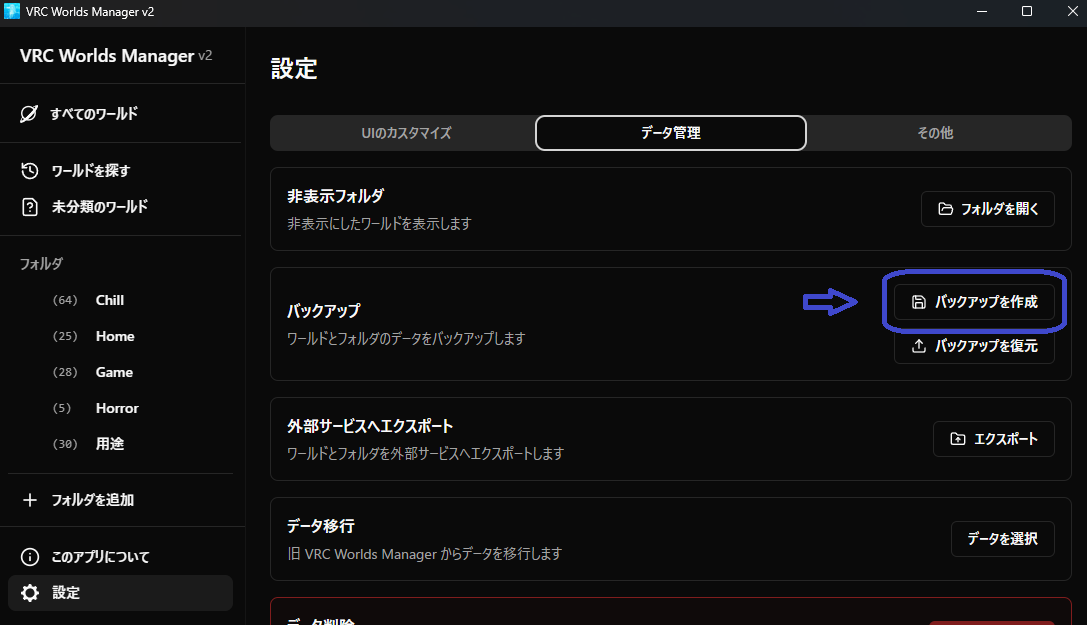
Open the desktop app v2 and press Settings → Data management → "Create backup".
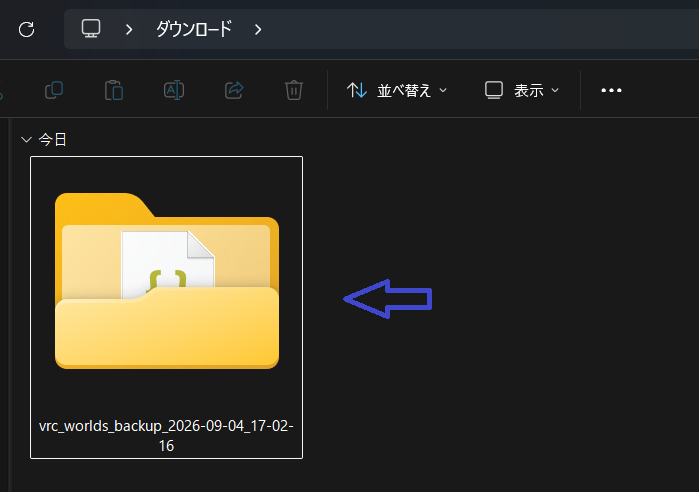
A folder named "vrc_worlds_backup_<date>_<time>" has appeared in your Downloads folder. Open it.
Inside are worlds.json and folders.json. These two are what the web version asks for.
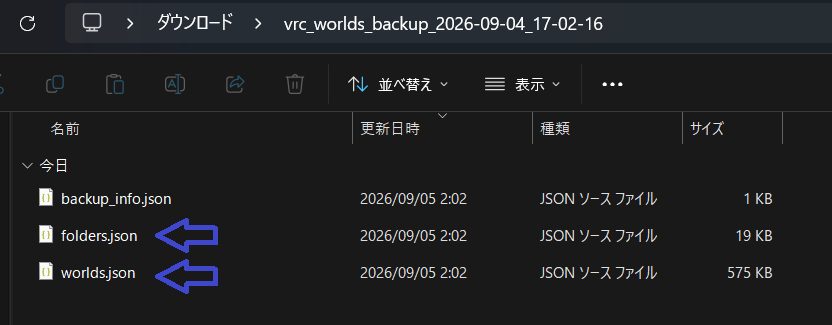
worlds.json→ Worlds Datafolders.json→ Folders Data
backup_info.json is not used.
In the web version, press Settings → Data management → "Data migration" → "Select data". Choose worlds.json as the worlds data and folders.json as the folders data, then press "Start migration".
If you chose "Migrate from the desktop app" in the first-run setup, pick the same two files there in the same way.